Do I Need a Technician to Install My Internet?
September 24, 2026
What IT Problems Can Small Businesses in Darwin Get Help With?
October 10, 2026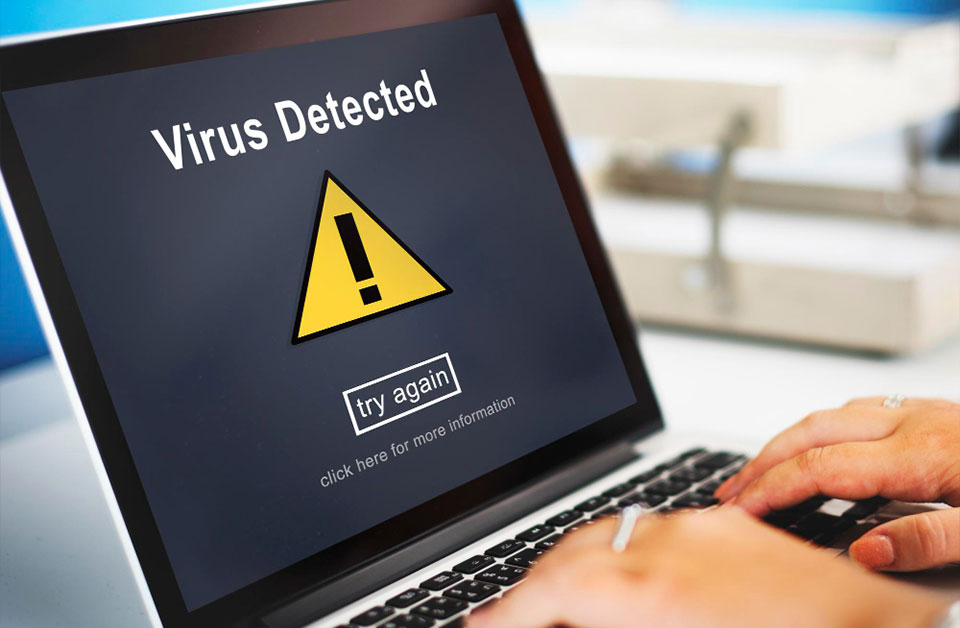
Computer virus removal starts with finding out what is causing the problem. A virus or other type of malware can make a computer slow, show unwanted pop-ups, change browser settings or cause unusual behaviour. But these signs do not always mean your computer has a virus.
A security scan can help you find out what is happening. If a threat is found, you can usually quarantine or remove it with trusted security software. More difficult infections may need further troubleshooting.
What Is a Computer Virus?
A computer virus is a type of malicious software that can affect how a computer works. It may spread to other files or programs and cause unwanted changes.
You may also hear the term malware. Malware is a broader term for malicious software. It includes viruses, spyware, ransomware, and other harmful programs.
Not every computer problem comes from malware. A slow computer can also have low storage, too many startup programs, outdated software or other technical problems.
That is the reason it helps to check the computer before assuming that a virus is the cause.
What Are the Signs of a Computer Virus?
Some infections are easy to notice. Others can run quietly in the background. Possible signs include:
- Your computer suddenly becomes very slow
- You see frequent pop-ups
- Your browser redirects you to strange websites
- Unknown programs appear on your computer
- New browser extensions appear without your permission
- Your security software stops working
- Files change or become difficult to open
- Programs crash more often
- Your computer behaves differently from normal
- You notice unusual network activity
These signs can point to malware, but they don’t prove an infection. Microsoft also lists slow performance, unexpected ads, and browser redirects as possible signs of malware.
How to Check Your Computer for a Virus
If you think your computer has a virus, start with a trusted security scan. On Windows, Windows Security includes Microsoft Defender Antivirus. You can open Windows Security and select Virus & threat protection. You can then choose from different scan options.
Quick Scan
A quick scan checks areas where malware is commonly found. It is a useful first step when you notice unusual behavior.
Full Scan
A full scan checks all files and programs on the computer. It can take longer, especially if your computer has a lot of files.
Microsoft Defender Offline Scan
If malware keeps coming back, Microsoft Defender Offline can provide a deeper check. It restarts the computer and runs the scan outside the normal Windows environment. This can make it harder for persistent malware to hide.
Before starting an offline scan, save any work you have open because the computer will restart.
How Do You Remove a Virus From a Computer?
If a scan finds a threat, follow the instructions provided by your security software. In many cases, you can quarantine or remove the detected file. Quarantine isolates the threat so it cannot continue running on the computer. A simple removal process is:
- Update your security software.
- Run a Quick Scan.
- Run a Full Scan if needed.
- Review the detected threats.
- Quarantine or remove the threats.
- Restart the computer if requested.
- Run another scan if the problem continues.
Microsoft recommends keeping security intelligence up to date before scanning. Windows Security can also show previous threats that it has quarantined.
Do not start deleting random system files because you think they are infected. Removing the wrong file can create another problem.
How Do You Get Rid of a Virus on a Computer?
To get rid of a virus on a computer, use trusted antivirus or anti-malware software to scan the system. If it finds a threat, follow the recommended steps to remove or quarantine it.
If the same threat returns after removal, the problem may need more investigation. Microsoft notes that some malware can reinstall itself after a restart, and an offline scan may help find persistent threats.
Can You Remove a Computer Virus Yourself?
You can remove some infections yourself if your computer still works normally and your security software can detect the threat. A basic scan may be enough for a common infection.
You should be more careful when:
- The virus keeps returning
- Security software will not open
- Your computer will not start normally
- Files have been changed or encrypted
- You cannot remove the detected threat
- The computer still behaves strangely after scanning
- You are unsure whether a file is safe
In these situations, professional help can save time and reduce the risk of making the problem worse.
What Is the Difference Between a Virus and Malware?
The terms “virus” and “malware” are often used together, but they do not mean exactly the same thing.
A virus is one type of malware. Malware is the wider category. Other examples include:
- Spyware, which can collect information from a device
- Ransomware, which can block access to files and demand payment
- Trojans, which can disguise themselves as legitimate software
- Browser hijackers, which can change browser behavior
This is why a security scan may find malware even when the problem is not technically a computer virus.
How Can a Computer Get a Virus?
Malware can reach a computer in several ways. Common examples include:
- Suspicious email attachments
- Unsafe downloads
- Fake software updates
- Malicious websites
- Unknown programs
- Infected USB drives
- Suspicious links
- Pirated or modified software
You should download programs from trusted sources and keep Windows, your browser and other software updated. Microsoft also recommends using security features that help protect against unsafe apps, downloads, and websites.
What If the Virus Keeps Coming Back?
A virus that returns after removal needs more attention. The infection may not have been completely removed. Another malicious file could also be restoring it.
Start by updating your security software and running another scan. If the problem continues, try a Microsoft Defender Offline scan on Windows. Microsoft recommends this option when the same malware keeps returning.
You should also think about what happened before the infection appeared. Did you install a new program? Open a suspicious attachment? Visit an unfamiliar website? Finding the source can help prevent the problem from happening again.
How to Prevent Another Virus Infection
Good computer habits can reduce the risk of another infection. Keep Windows and your applications updated. Security updates can fix vulnerabilities that attackers might try to exploit.
You should also:
- Use trusted security software
- Download programs from reputable sources
- Avoid suspicious links
- Be careful with email attachments
- Remove programs you do not recognize
- Keep your browser updated
- Back up important files
- Avoid installing unknown software
Windows Security also provides real-time protection and other security features to help protect Windows devices from malware and other threats.
What Not to Do When You Think Your Computer Has a Virus
If you think your computer may have a virus, avoid making changes that could make the problem worse. A few simple precautions can help protect your files and system.
- Avoid downloading antivirus software from pop-up messages. Some fake warnings are designed to make you install unwanted or harmful programs.
- Don’t remove Windows files yourself. Deleting the wrong file can cause problems with Windows or other software.
- Never share passwords or payment details through suspicious alerts. Close the message and run a scan using your trusted security software.
- Don’t ignore the same threat appearing again. If an alert keeps coming back, the problem may need further investigation.
- Stay away from cracked or pirated software. Downloads from untrusted sources can contain malware and other unwanted programs.
- Don’t assume slow performance means you have a virus. Low storage, too many startup apps, outdated software, and other issues can also make a computer slow.
When Should You Get Professional Computer Virus Removal?
You may need professional help if your security software cannot remove the threat, the infection keeps returning, or your computer continues to behave strangely after a scan. A computer repair technician can investigate the issue and check whether malware is the actual cause or whether another computer problem is involved.
Computer Virus Removal in Darwin and Palmerston
Techie4NT provides computer support for customers in Darwin and Palmerston.
If your computer is showing signs of malware, a technician can help investigate the problem and troubleshoot the system. The goal is to identify the cause, remove the problem where possible, and get your computer working normally again.
Frequently Asked Questions
Start by running a trusted security scan. If the scan detects malware, follow the recommended steps to quarantine or remove it. Run another scan if the problem continues.
Slow performance, pop-ups, browser redirects, and unknown programs can be signs of malware. However, these symptoms can also have other causes, so a security scan is the best way to check.
Yes, Windows Security includes Microsoft Defender Antivirus, which can detect and remove many types of malware. Some threats may require additional steps.
It is safer to use a trusted antivirus or anti-malware tool rather than trying to find and delete infected files yourself. Manual removal can cause further problems if you remove an important system file.
Restarting does not normally remove an infection by itself. Some malware can continue running after a restart. If a threat keeps returning, an offline scan may help identify persistent malware.
Malware can use system resources and affect computer performance. However, slow performance can also result from storage issues, too many programs, outdated software or other technical problems.
Consider professional help if the infection keeps returning, security software cannot remove it, your computer will not work normally, or you are unsure how to handle the problem safely.
Final Thoughts
Computer virus removal does not always require complicated steps. Start by checking the computer with trusted security software. If it finds a threat, follow the recommended removal or quarantine steps.
If the problem continues, do not keep guessing. A recurring infection may need a deeper scan or professional troubleshooting.
For computer users in Darwin and Palmerston, Techie4NT can help investigate virus- and malware-related computer problems and get your system back on track.